To give sellers more flexibility when managing multiple stores, the system has removed the automatic charge feature for store maintenance fees.
Stores that have not generated any sales in the last 3 months will be displayed on the Store Monthly Subscription page. To keep these stores active, sellers are required to pay a monthly maintenance fee.
Previously, when a seller topped up their balance, the system could automatically charge the maintenance fee based on the order of stores in the system. This could be inconvenient if the seller only wanted to renew a specific store.
With the new update, sellers can now proactively choose the exact store they want to renew manually, allowing them to control precisely which store will be charged.
How manual renewal works
Stores that have not generated any sales in the last 3 months will be listed on the Store Monthly Subscription page. To keep these stores active, a monthly maintenance fee is required. Renewal can now be completed manually on this page.
You only need to select the store you want to renew. The system will only charge the selected store.
If your balance is not enough, you will need to top up first before completing the renewal.
How to manually renew your store
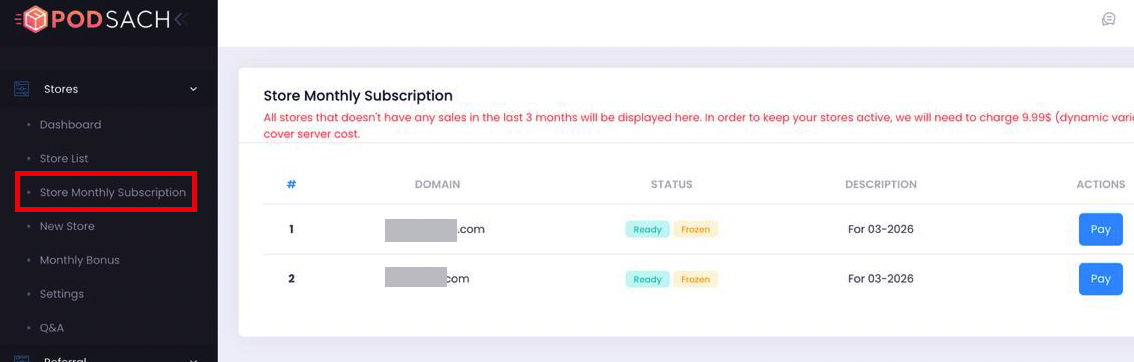
Step 1 – Go to the Store Monthly Subscription page
Open the Store Monthly Subscription section in your seller dashboard.
Here, you will see the list of stores that currently require renewal.
Step 2 – Select the store you want to renew
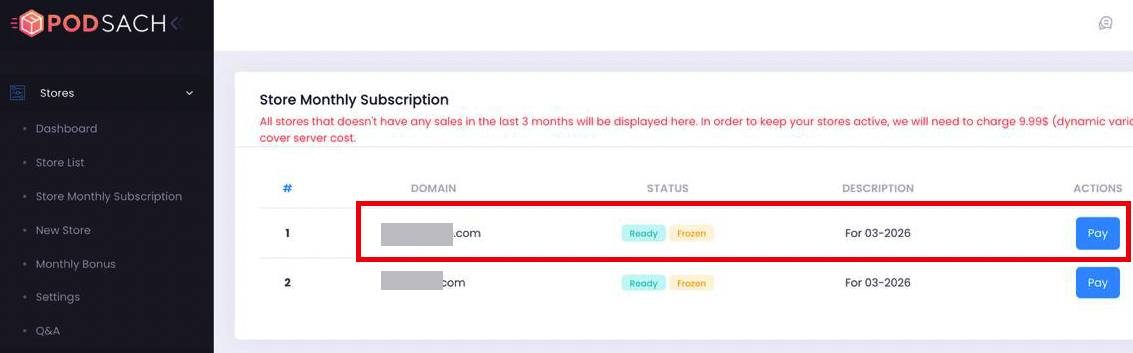
Find the store you want to keep active and click Pay.
The system will only process the renewal for the store you select.
Step 3 – Confirm the renewal fee
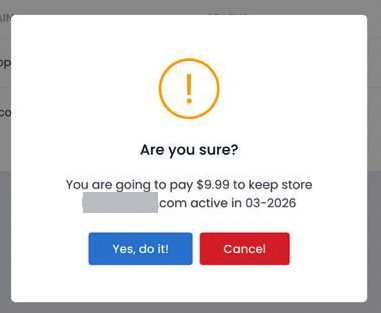
A confirmation window will appear showing the renewal amount.
Review the information and click Confirm to continue.
Step 4 – Complete the payment
If your account balance is sufficient, the renewal will be processed immediately.
Once the payment is successful, the selected store will be renewed.
If your balance is not enough
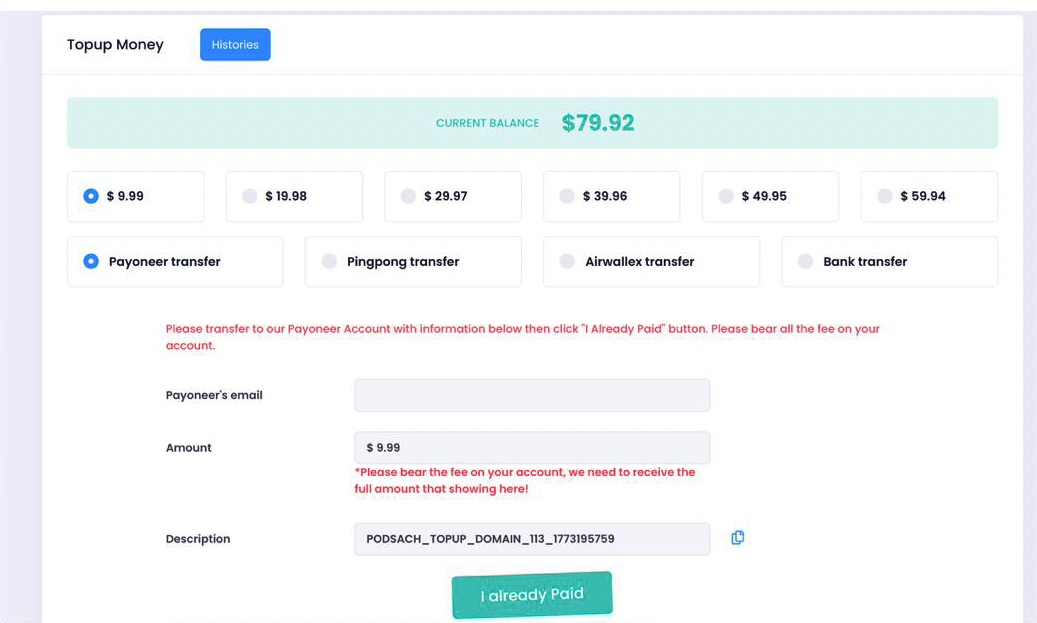
If your current balance does not cover the renewal fee, you will need to top up your balance first.
To do this:
Go to the Topup Balance page.
Select the topup amount.
Choose your payment method.
Complete the payment and submit your topup request.
After your topup is verified and your balance is updated, you can return to the Store Monthly Subscription page and renew your store.
Example
Suppose you have three stores:
Store A
Store B
Store C
You only want to renew Store B.
With Manual Renewal, you simply go to the Store Monthly Subscription page, click Pay for Store B, and confirm the payment.
Only Store B will be renewed.
Store A and Store C will not be charged.
We hope this guide helps you top up your balance and renew the right store more easily. If you need any further assistance, please contact our support team. We are always ready to help.
Was this article helpful?
That’s Great!
Thank you for your feedback
Sorry! We couldn't be helpful
Thank you for your feedback
Feedback sent
We appreciate your effort and will try to fix the article